Google Drive is one of those tools that millions of people have access to but never fully use. Most people know it exists, have accidentally saved something to it at some point, and have a vague sense that it is useful — but they have never sat down and learned how it actually works.
That changes with this guide. By the time you finish reading, you will know how to upload and organise files, create documents directly in Drive, share files and folders with other people, access everything from your phone, and manage your storage so you never run out of space at the wrong moment.
No technical background needed. If you have a Google account, you are already set up. Everything else is just knowing where to click.
What Google Drive Actually Is
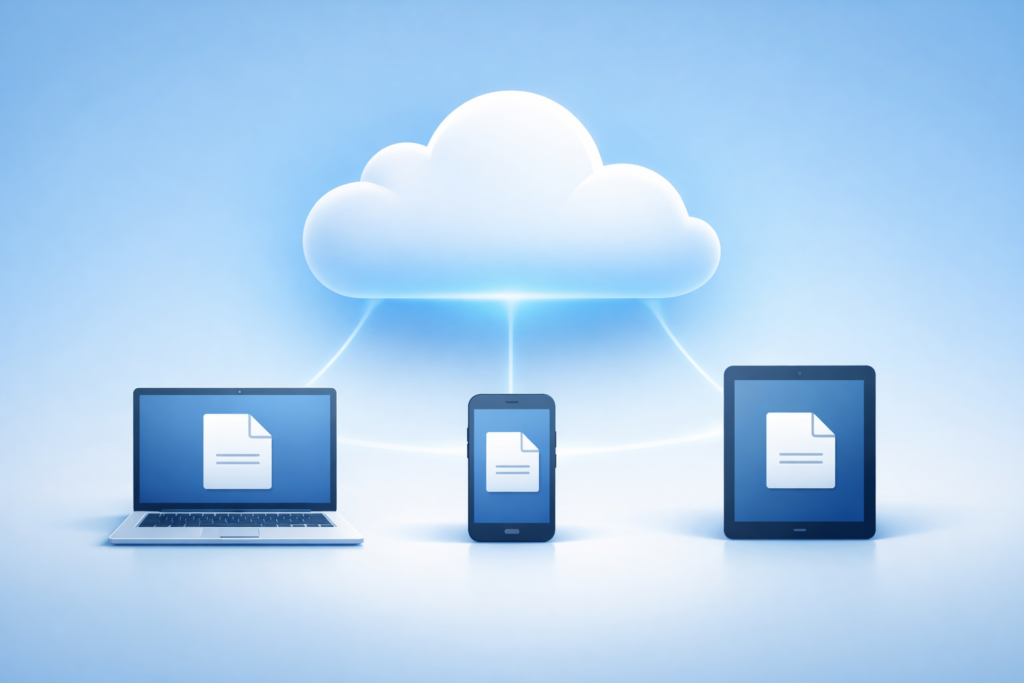
Google Drive is a cloud storage service. It gives you a place to store files on Google’s servers so that you can access them from any device — your laptop, your phone, a tablet, or even a borrowed computer — as long as you are signed into your Google account.
It is also more than just storage. Drive is the home base for Google’s suite of productivity tools — Google Docs for word processing, Google Sheets for spreadsheets, and Google Slides for presentations. You can create and edit all of these directly inside Drive without downloading any software. Everything saves automatically and instantly, which means you will never lose work because you forgot to hit save.
Every Google account comes with 15 GB of free storage, shared across Drive, Gmail, and Google Photos. For most beginners, 15 GB is more than enough to get started. If you eventually need more, paid plans are available through Google One, but there is no need to think about that yet.
If you are not yet clear on what cloud storage is and why it is useful, our plain-English guide to cloud storage covers the fundamentals before you continue here.
How to Access Google Drive
There are three main ways to access Google Drive, and most people end up using all three depending on where they are and what they are doing.
Through a Web Browser
The simplest way to access Drive is to open any web browser — Chrome, Firefox, Safari, Edge — and go to drive.google.com. Sign in with your Google account and you will see your Drive dashboard immediately. No download required. This works on any computer, including ones that do not belong to you.
Through the Desktop App
Google offers a free desktop application called Drive for Desktop, available for both Windows and Mac. Once installed, it creates a Google Drive folder directly on your computer that syncs automatically with your cloud storage. Files you add to that folder are uploaded to Drive without any manual action. Files you add through the browser appear in the folder automatically. It works quietly in the background and is the most convenient option if you use the same computer regularly.
To download it, go to drive.google.com, click the Settings icon in the top-right corner, and select Get Drive for Desktop. Follow the installation instructions and sign in with your Google account when prompted.
Through the Mobile App
The Google Drive app is available for both Android and iOS. Download it from the Google Play Store or the Apple App Store, sign in with your Google account, and all your files are immediately accessible from your phone or tablet. You can upload photos, open documents, share files, and manage your storage all from the app.
Understanding the Google Drive Interface
When you open Google Drive in a browser, the layout is straightforward once you know what each part does.
My Drive
This is your main storage area. Everything you upload or create in Drive lives here unless you move it somewhere else. Think of it as the root folder — the equivalent of your desktop or Documents folder on a regular computer.
Computers
If you have Drive for Desktop installed, this section shows the files and folders from your actual computer that are being synced to the cloud. It is separate from My Drive so you can clearly see what is stored locally versus what was created or uploaded directly in Drive.
Shared With Me
When someone shares a file or folder with you, it appears here. Files in this section do not count toward your storage limit unless you explicitly add them to your own Drive.
Recent
Shows the files you have opened or edited most recently across all of Drive. Useful for quickly picking up where you left off without having to navigate through folders.
Starred
Any file you star — by right-clicking and selecting Add to Starred — appears here. It works like a favourites list. Star files you return to frequently so you can reach them in one click.
Trash
Deleted files go here first. They stay in the Trash until you empty it manually, which gives you a window to recover anything you deleted by accident. Files in the Trash still count toward your storage limit until the Trash is emptied.
Storage
At the bottom of the left sidebar you can see how much of your 15 GB you have used. Clicking on it shows you a breakdown of what is taking up space across Drive, Gmail, and Google Photos.
How to Upload Files to Google Drive
Uploading files to Drive is one of the first things you will do, and there are a few ways to go about it.
Uploading Through the Browser
Open drive.google.com and click the New button in the top-left corner of the screen. From the dropdown menu, select File upload if you want to upload a single file, or Folder upload if you want to upload an entire folder from your computer. A file browser window will open — navigate to the file you want, select it, and click Open. The file will begin uploading immediately. A progress bar appears in the bottom-right corner of the screen so you can see when it is done.
You can also drag and drop files directly into the Drive browser window. Open Drive, open a folder on your computer alongside it, and drag files from your computer folder into the Drive window. They will upload automatically.
Uploading Through the Desktop App
If you have Drive for Desktop installed, uploading is even simpler. Open the Google Drive folder on your computer and move or copy files into it, exactly as you would with any other folder. Those files sync to your cloud storage automatically without you needing to open a browser.
Uploading From Your Phone
Open the Google Drive app and tap the plus icon, usually located in the bottom-right corner of the screen. Select Upload and choose the file from your phone’s storage. Photos, documents, PDFs — anything stored on your phone can be uploaded this way.
How to Create Files Directly in Google Drive
One of the most useful things about Google Drive is that you do not always need to upload files from your device. You can create documents, spreadsheets, and presentations directly inside Drive, and they are stored automatically as you work.
Click the New button in Drive and you will see options to create a Google Doc, Google Sheet, Google Slides presentation, or Google Form. Click any of these and a new file opens immediately in a new browser tab. Start typing, building your spreadsheet, or designing your slides — everything saves automatically as you work. There is no Save button to click and no risk of losing your work if the browser closes unexpectedly.
Files created this way do not take up any of your 15 GB storage limit, which is a useful extra advantage over uploading Word or Excel files.
If you want a detailed walkthrough of Google Docs specifically, our beginner’s guide to Google Docs covers everything from formatting text to sharing documents with others.
How to Organise Files With Folders
Without some organisation, your Drive will become a cluttered pile of files that is difficult to navigate. Folders solve this. Setting up a simple folder structure from the start saves you a lot of frustration later.
Creating a New Folder
Click the New button and select New folder. Give it a name and click Create. The folder appears in your Drive and you can start moving files into it immediately.
Moving Files Into Folders
Right-click any file in your Drive and select Move to. A folder browser will appear where you can navigate to the folder you want and click Move. Alternatively, you can drag a file directly onto a folder to move it in.
Creating Subfolders
Open any folder and use the same New button to create a folder inside it. This lets you build a nested structure — for example, a main folder called Work with subfolders called Projects, Invoices, and Meeting Notes inside it.
A Simple Starting Structure for Beginners
If you are not sure how to organise your Drive, here is a simple structure that works well for most people starting out.
- Work — for anything job or project related
- Personal — for personal documents, forms, and records
- Photos and Media — for images or videos you want to store in Drive
- Shared Files — for keeping track of files others have shared with you that you want easy access to
You do not need anything elaborate. A structure you will actually use consistently is better than a perfectly designed one you abandon after a week.
How to Share Files and Folders With Other People
Sharing is one of the most powerful features in Google Drive. Instead of sending files as email attachments, you share a link — and you control exactly what the other person can do with it.
Sharing a Single File
Right-click the file you want to share and select Share. A sharing window will open with two main options.
The first option is to share directly with a specific person. Type their email address into the field at the top of the window and choose their permission level from the dropdown menu beside it. Viewer means they can read the file but not change it. Commenter means they can leave notes and suggestions but cannot edit the content directly. Editor means they can make changes to the file. Click Send and they will receive an email notification with a link to open the file.
The second option is to generate a shareable link. Click the Change option under General access and choose Anyone with the link. Set the permission level — Viewer, Commenter, or Editor — and then click Copy link. You can paste that link into an email, a message, or anywhere else. Anyone who has the link can access the file with the permission level you set.
Sharing an Entire Folder
Sharing works the same way for folders as it does for individual files. Right-click the folder, select Share, and follow the same steps. Anyone you share a folder with will have access to everything inside it, including files added to it later. This is particularly useful for ongoing projects where you want a colleague to always have access to the latest version of every file.
Changing or Removing Access
To change or remove someone’s access, right-click the file or folder, select Share, and find the person’s name in the sharing window. Click the permission level next to their name to change it, or select Remove access to revoke it entirely.
How to Access Your Files Offline
By default, Google Drive requires an internet connection to open files. But you can enable offline access for specific files so they are available even when you are not connected.
To enable offline access for a file, right-click it in Drive and look for the option that says Available offline. Toggle it on. Drive will download a local copy of the file to your device. You can open and edit it without an internet connection, and any changes you make will sync back to the cloud automatically the next time you reconnect.
To use offline access on a computer, you need to have Google Chrome installed and the Google Docs Offline Chrome extension enabled. Drive will prompt you to set this up the first time you try to enable offline access.
On mobile, the process is the same — open the Drive app, tap the three-dot menu next to any file, and select Make available offline.
How to Search for Files in Google Drive
Once you have a reasonable number of files in Drive, the search bar becomes one of the most useful features available. It is fast and surprisingly capable.
Click the search bar at the top of the Drive interface and type the name of the file you are looking for. Results appear as you type. If you remember only part of the file name, that is fine — Drive searches file names and also the content inside documents, so searching for a word or phrase that appears in a document will surface it even if it is not in the file name.
You can also filter search results by clicking the filter icon at the right end of the search bar. This lets you narrow results by file type, owner, date modified, and other criteria. If you are looking for a PDF you uploaded last month, filtering by file type and date will find it in seconds.
How to Manage Your Google Drive Storage
Google gives every account 15 GB of free storage, shared across Drive, Gmail, and Google Photos. It is worth keeping an eye on how you are using it so you are not caught out when you need to upload something important.
Checking Your Storage Usage
In the Drive browser interface, look at the bottom of the left sidebar. You will see a storage bar showing how much of your 15 GB you have used. Click on it to see a breakdown of what is using the most space across Drive, Gmail, and Photos.
Freeing Up Space
The fastest way to free up space is to delete large files you no longer need. In Drive, click the Storage section in the left sidebar and Drive will show your files sorted by size, largest first. This makes it easy to identify the biggest space consumers and delete anything you no longer need.
Remember that deleted files sit in the Trash and continue to count against your storage limit until the Trash is emptied. After deleting files, right-click the Trash folder and select Empty Trash to reclaim the space.
In Gmail, large attachments are often the biggest culprit. Searching for emails with large attachments and deleting old ones can recover a surprising amount of storage.
What Counts Toward Your Storage Limit
Files you upload to Drive — PDFs, images, Word documents, videos — count toward your 15 GB limit. Google Docs, Sheets, and Slides files that you create natively inside Drive do not count. This is one of the practical advantages of creating documents in Google’s native formats rather than uploading Office files.
Tips That Make Google Drive Genuinely Easier to Use
These are not advanced features — they are small habits and settings that make a real difference once you know about them.
Use Colour-Coded Folders
Right-click any folder and select Organise, then choose a colour. Colour-coding your folders makes it much faster to scan your Drive visually and find what you need. Use red for urgent projects, green for completed work, blue for personal files — whatever system makes sense to you.
Star Your Most-Used Files
Right-click any file or folder and select Add to Starred. Starred items appear in the Starred section in the left sidebar, giving you instant access to the files you use most often without having to search or navigate through folders.
Use Priority View on the Home Screen
Google Drive has a feature called Priority that uses your activity patterns to predict which files you are most likely to need next and surfaces them at the top of your Drive home screen. It is worth switching to this view if you work with a large number of files regularly.
Right-Click Is Your Friend
Almost every useful action in Google Drive — moving, sharing, renaming, starring, downloading, copying a link — is accessible by right-clicking a file or folder. If you are ever unsure how to do something in Drive, right-clicking is the first place to look.
Check Version History on Important Documents
For any Google Doc, Sheet, or Slides file, you can see the full history of every change ever made and restore any previous version. Open the file, click File in the top menu, and select Version history, then See version history. This is invaluable if you ever accidentally delete content or want to see how a document looked at an earlier stage.
Conclusion
Google Drive is straightforward once you understand its basic logic. Files live in the cloud, are accessible from any device, can be shared with a link, and are organised with folders just like a regular computer. The extra features — offline access, version history, colour-coded folders, native document creation — are all worth using once you are comfortable with the basics.
The best way to learn Drive is to use it for real files you actually need. Start by uploading a document you use regularly, organise your first few folders, and share one file with someone. Those three actions will teach you more than any amount of reading.
Once you are comfortable with Drive, the logical next step is learning how to use Google Docs — the word processor that lives inside it. Our complete beginner’s guide to Google Docs shows you everything from creating your first document to collaborating with others in real time.
Frequently Asked Questions
Is Google Drive free to use?
Yes. Every Google account comes with 15 GB of free storage shared across Google Drive, Gmail, and Google Photos. If you need more than 15 GB, paid plans are available through Google One starting at a modest monthly fee. For most beginners, 15 GB is sufficient to get started without spending anything.
Is Google Drive safe for storing personal files?
Google Drive uses encryption to protect your files during upload and while stored on Google’s servers. Your files are not accessible to others unless you choose to share them. For most everyday personal documents, Drive is a safe and practical storage option. For highly sensitive documents such as financial records or legal paperwork, consider whether any cloud service is the appropriate place for them and ensure your Google account is secured with a strong password and two-factor authentication.
Can I use Google Drive without a Gmail address?
Google Drive requires a Google account, but a Google account does not have to use a Gmail address. You can create a Google account using any existing email address and still access Drive with the same 15 GB of free storage.
What happens to my files if I delete my Google account?
If you delete your Google account, all files stored in your Drive are permanently deleted along with it. Before closing any Google account, download all your Drive files first using Google Takeout, which lets you export everything in one go.
Can multiple people edit the same file in Google Drive at the same time?
Yes. This is one of Drive’s most useful features. When you share a Google Doc, Sheet, or Slides file with Editor access, multiple people can open and edit the same file simultaneously. Changes made by each person appear in real time for everyone else viewing the document.
Does Google Drive work on all devices?
Yes. Google Drive is accessible through any web browser on any computer, and through the Google Drive app on Android and iOS devices. The desktop sync app is available for Windows and Mac. There is no version of Drive for Linux through the desktop app, but Linux users can access Drive fully through any web browser.
What is the difference between Google Drive and Google One?
Google Drive is the storage and file management service. Google One is the paid subscription plan that gives you additional storage beyond the free 15 GB, along with some extra benefits. You use Google Drive regardless of whether you pay for Google One or stay on the free tier.